Set up company records and employee access
Check the company record, create or locate an employee, and give their account the access needed for work.
- Who uses it
- Administrators
- Content updated
- 2026-09-09
Sign in to your company workspace first. Add the /app/… paths below to your company system URL.
Before you start
- Company, employee and account administration require their respective HR or account-management permissions.
Steps
Review the company record
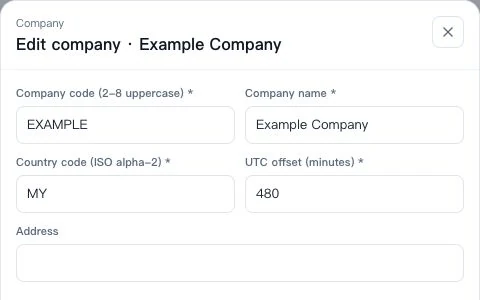
Open Organization at /app/hr/org, choose Company, then Company management and Edit on the relevant row. Check company name, country, UTC offset (minutes) and address, then Save. Your personal interface language is changed in Personal Settings.
Expected result: The page shows Saved and the company record reflects the change.
Find or create the employee
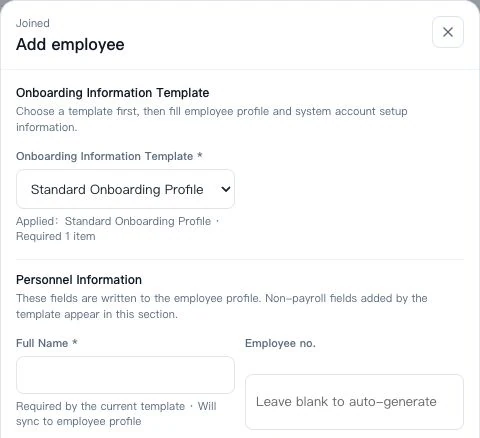
Open Employee records at /app/hr/people and search before adding anyone. If a record is missing, choose Add employee, select the onboarding template and complete its required fields, including name and the relevant company or department.
Expected result: You are using the existing employee record or a completed new-employee form.
Set up the login account during onboarding
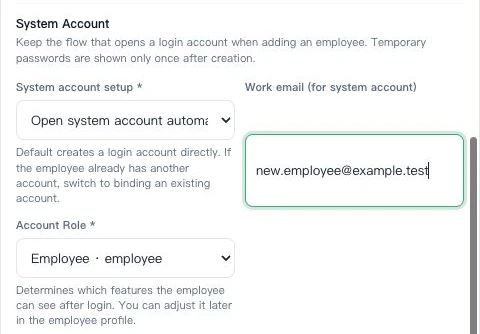
The new-employee form defaults to Open system account automatically. Enter Work email and select the appropriate role, then choose Create employee. If an unbound account already exists, use the option to link it. Share any one-time temporary password with that employee through your approved channel.
Expected result: Employee created appears, and the account is created or linked to that employee.
Check the employee’s actual access
Use Accounts at /app/hr/accounts and Roles at /app/hr/roles to inspect the account and its permissions. Have the employee sign in with their own account and open the modules needed for work. Department membership and channel-service teams have different purposes; do not use a shared login to work around missing access.
Expected result: The employee can open the intended modules with their own account.