Sign in, change language and password
Use your company workspace, check your account details, and update your own language and password.
- Who uses it
- All users
- Content updated
- 2026-09-09
Sign in to your company workspace first. Add the /app/… paths below to your company system URL.
Before you start
- A workspace owner needs the signup verification email; an employee needs the company URL and administrator-created login.
Steps
Sign in to your company workspace
Workspace owners complete email verification and the set-password link from signup. Employees use the exact login and temporary password supplied by their administrator. Open the company URL, not another company’s login page.
Expected result: Your company workspace opens under your own account.
Check the read-only account details
Open Personal Settings at /app/hr/me. Under Account Details, check your name and email. These fields are read-only; ask your administrator to correct the account record if they are wrong.
Expected result: You have checked the read-only name and email without creating another account.
Choose your interface language
In Switch Language, select the language you want to use. This changes your interface language, not the language of customer messages or a company-wide setting.
Expected result: The language-switch confirmation appears and the interface uses your selection.
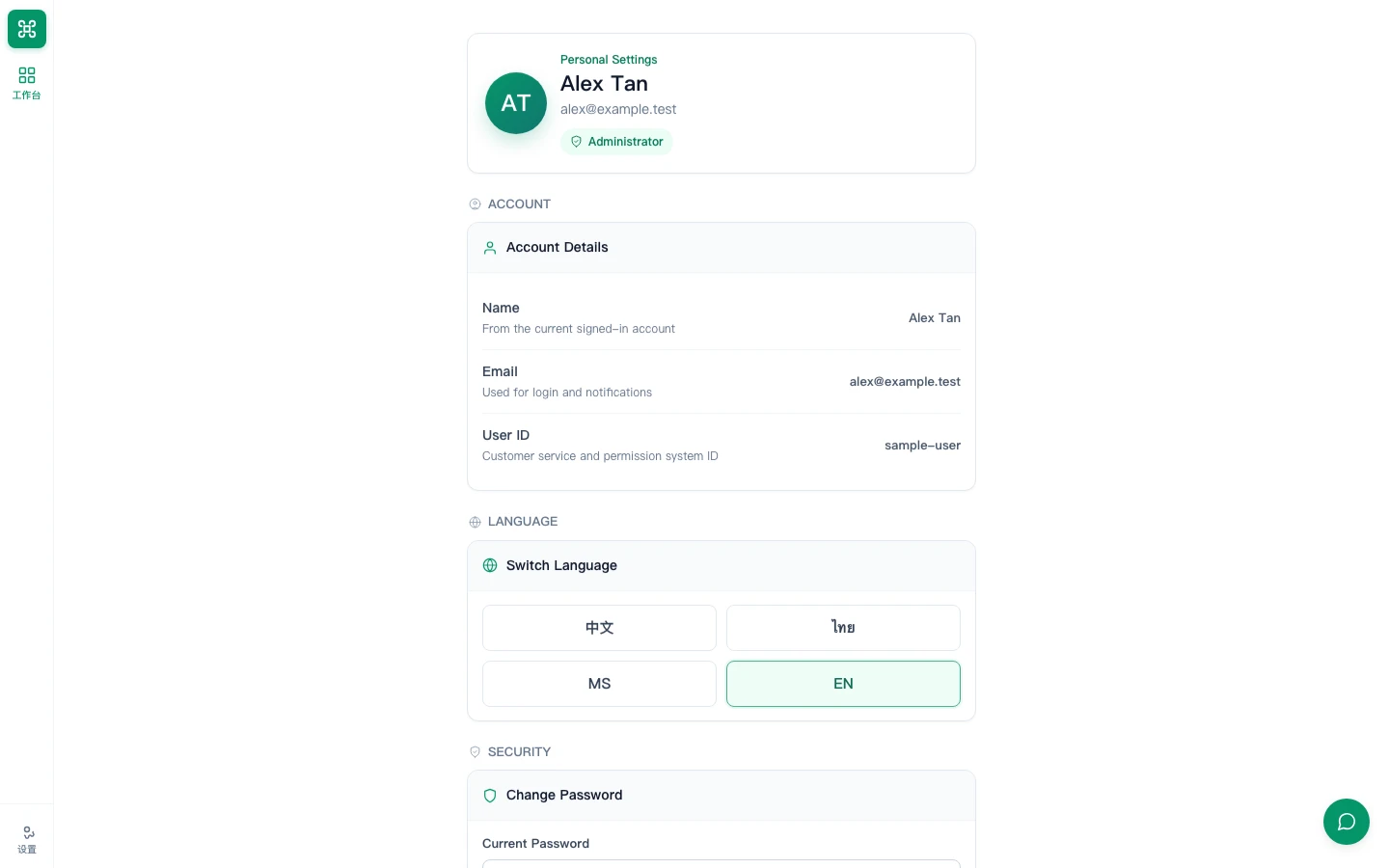
Update your password
In Change Password, enter Current Password, New Password and Confirm New Password, then choose Update Password. Follow the validation shown beside the form. Forgotten the current password? Ask your administrator to reset it.
Expected result: The page confirms the password was updated; use the new password at your next login.