Check plan usage and AI balance
Check workspace limits and AI credits separately, then choose the correct administrator action if service is limited.
- Who uses it
- All users
- Content updated
- 2026-09-09
Sign in to your company workspace first. Add the /app/… paths below to your company system URL.
Before you start
- The billing page must be enabled for the company. Subscription changes and top-ups require the relevant administrator permission.
Steps
Open the plan and usage page
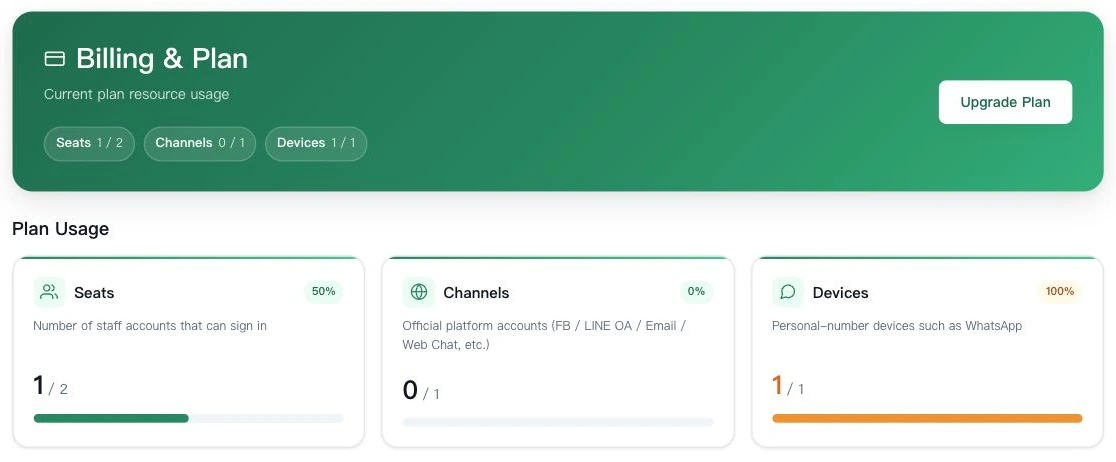
Open Billing & Plan at /app/billing. Check the displayed plan and seat, channel, device and storage usage. When available, the page also shows subscription details. Employees may have read-only access; that does not allow changing the subscription.
Expected result: You know which specific workspace limit has been reached.
Use the available subscription action
Administrators may see Upgrade Plan, or Subscription & Billing on the highest plan, when self-service is configured. These open the plan comparison flow; they do not themselves complete payment. If the page says to contact the vendor or administrator, use that route.
Expected result: The appropriate plan or contact flow opens without assuming the subscription has changed.
Check AI credits separately
Open AI Center → Usage & Billing at /app/ai/billing. Review the credit balance and usage, and choose Refresh balance when needed. A company subscription and its AI credit balance are different items.
Expected result: You can distinguish an AI-balance problem from a subscription problem.
Confirm the result of a top-up or renewal
An authorized administrator can use Top Up when the payment path is configured. After completing payment, return and check the actual updated balance. If the page requires subscription renewal first, follow that instruction; buying AI credits is not a substitute for renewing company service.
Expected result: The relevant subscription or balance has visibly updated, or its remaining restriction is clear.