Message colleagues and create tasks
Use Internal IM for discussion and Tasks for work that needs assignment, a deadline and a visible result.
- Who uses it
- All users
- Content updated
- 2026-09-09
Sign in to your company workspace first. Add the /app/… paths below to your company system URL.
Before you start
- An employee account with Internal IM and task access; group creation requires its own permission.
Steps
Start an internal chat
Open Internal IM at /app/im and choose New Chat. Search for a coworker and select them to open the conversation. Messages here go to colleagues; use the shared inbox for customer replies.
Expected result: The selected colleague’s chat opens and your message appears in that conversation.
Create a group when a discussion needs several colleagues
With group-creation permission, choose New Group Chat, enter the group name, select the colleagues to include, then Create. Check the group members before sharing work details.
Expected result: The new group opens with the selected members.
Create a task with clear assignment
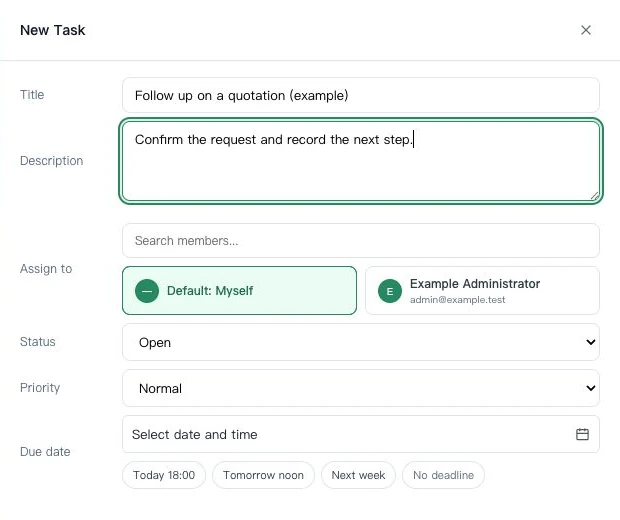
Open Tasks → My tasks at /app/tasks/mine and choose New Task. Enter title and description, select Assign to, set priority and due date/time, then Save. Include a useful link or record reference in the description.
Expected result: The new task appears in the task list with its assignment and due time.
Record the result and update status
Open the task when work changes. Update its description or result, choose the appropriate status, and Save. Finished work can be marked Completed and checked in the Completed view at /app/tasks/completed.
Expected result: Colleagues can see the current status and what was completed.