Troubleshoot a problem and contact support
Check the symptom, record what happened, and use the support route that is available to you.
- Who uses it
- All users
- Content updated
- 2026-09-09
Sign in to your company workspace first. Add the /app/… paths below to your company system URL.
Before you start
- Know the page or feature and the approximate time of the problem; you do not need to share a password.
Steps
Start with the relevant check
Cannot sign in: check the company URL and exact account name with your administrator. Missing a feature: check access and company enablement. Missing a conversation: clear filters and check channel state. Failed to send: read the message’s error before retrying.
Expected result: You have checked the likely setting without repeating a data-changing action.
Record enough detail to reproduce it
Prepare: page or feature; time and timezone; what you clicked; expected result; actual result and error; browser; whether a colleague sees the same problem. Crop screenshots to the relevant area and remove credentials and unnecessary customer information.
Expected result: Support can understand the problem from your description.
Use Help & Support when signed in
In the company system, open Help & Support and select Online support. Send the information from the previous step. You can leave a message; do not assume an immediate response time unless your support agreement states one.
Expected result: The support conversation shows your submitted message.
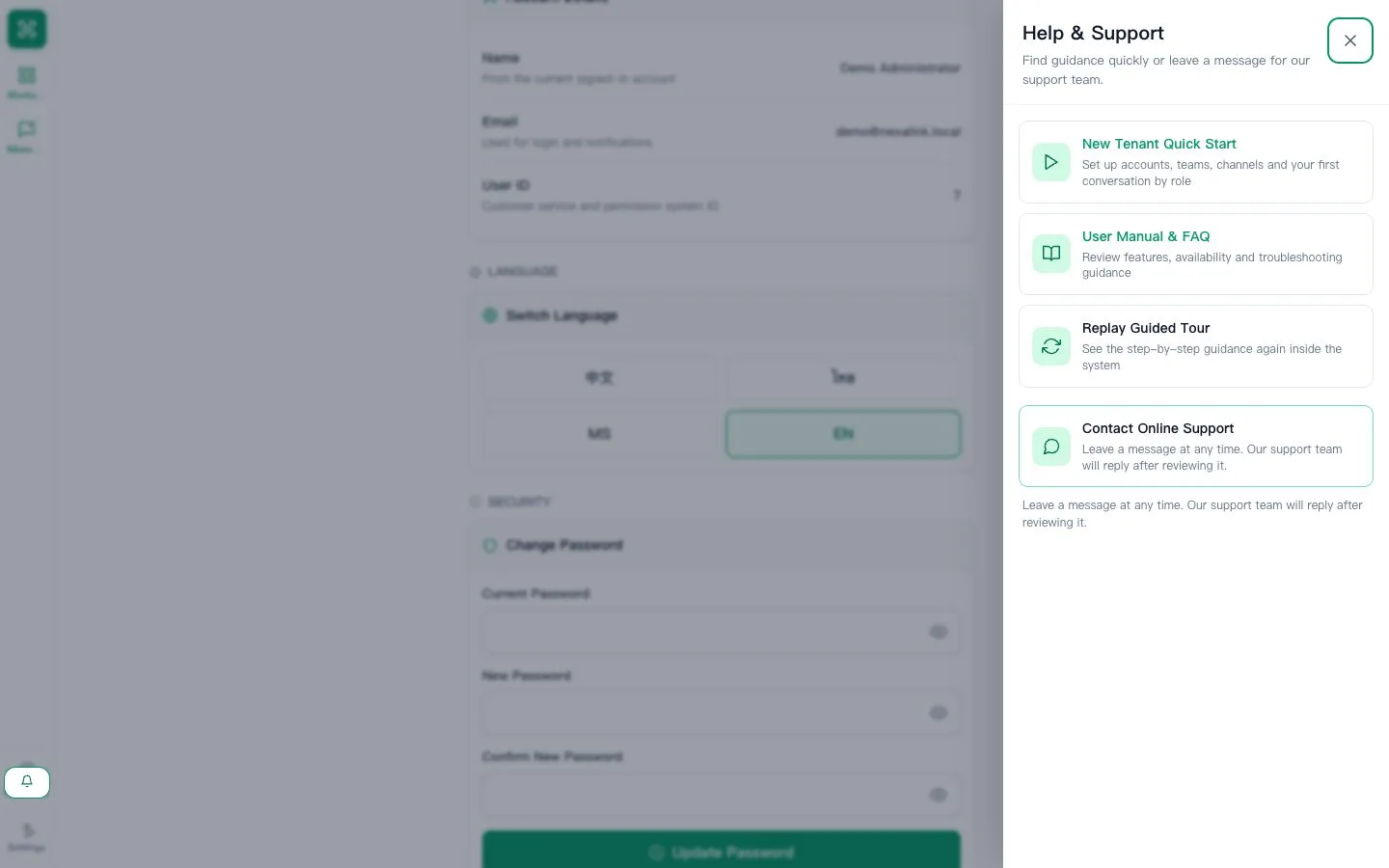
Use the public contact form if you cannot sign in
First ask your company administrator about account access. If the administrator also needs AllOne Sales support, use the official website contact form linked in this Help Center footer when that public form is enabled. Enter a reachable email and the requested company/contact details. Never send passwords or verification codes.
Expected result: You have a route to request help without first signing into the company system.