Find a conversation, reply and follow up
Find the customer’s conversation, send a reply, and leave a clear next action or resolve the conversation.
- Who uses it
- All users
- Content updated
- 2026-09-09
Sign in to your company workspace first. Add the /app/… paths below to your company system URL.
Before you start
- A connected channel, access to its inbox, and permission to send customer replies.
Steps
Open the correct queue
Open Shared inbox at /app/inbox. Select the channel and the relevant view, then open a conversation. If a known conversation is missing, clear the current channel, owner and status filters before checking access with an administrator.
Expected result: The intended customer conversation is open.
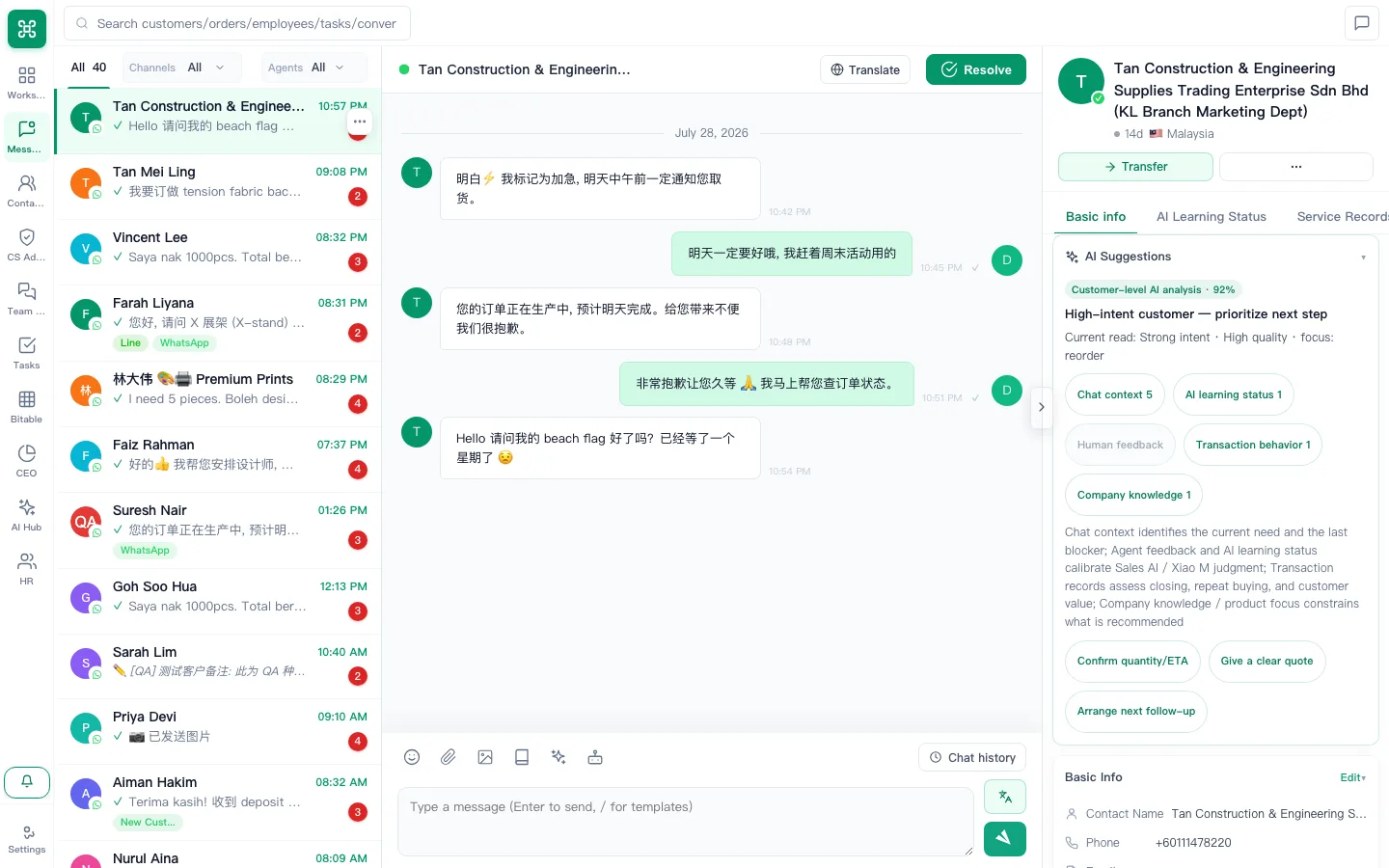
Read the customer context
Check the customer details, message history and internal notes before replying. Keep confidential internal discussion in Internal IM or the appropriate internal note; do not paste it into a customer reply.
Expected result: The reply addresses the right customer and their latest request.
Send and check the message result
Enter the reply in the conversation’s composer and choose Send. Check the status shown beside the message. If sending fails, read the error before retrying; supported attachment types and reply windows depend on the channel.
Expected result: The message has a visible result; a channel setup test also confirms receipt on the customer side.
Create a follow-up task when work remains
On a desktop, right-click the relevant message and choose Convert to Task. Edit the title, priority, due date and description, then Save. The message context and conversation are linked. Open Tasks to set or change assignees and status; the quick-create dialog has no assignee selector.
Expected result: The follow-up is recorded as a task linked to the conversation.
Resolve only after this request is handled
Choose Resolve and confirm with the second click within the displayed confirmation period. If follow-up is still needed, record it first. A closed conversation can be opened again with Reopen when more work is required.
Expected result: The completion message appears and the conversation list updates.