Check employee records and review leave
For authorized HR staff: check employee records and process the leave approval queue. Employee self-service submission is not provided by the current Personal Settings page.
- Who uses it
- Administrators
- Content updated
- 2026-09-09
Sign in to your company workspace first. Add the /app/… paths below to your company system URL.
Before you start
- Employee records require HR access; the leave approval page requires leave-approval permission and configured leave types.
Steps
Check the employee record
Open Employee records at /app/hr/people. Find the employee and check company, department and employment status before processing their request. Employees should ask HR to correct their record rather than create a duplicate.
Expected result: The request is associated with the intended employee record.
Open the pending leave queue
Open Leave at /app/hr/leave and select Pending. Read the employee, leave type, date range and duration on the request. If the page asks you to configure leave types first, an authorized HR administrator must complete Leave rules at /app/hr/leave-rules.
Expected result: The application and its requested leave period are visible for review.
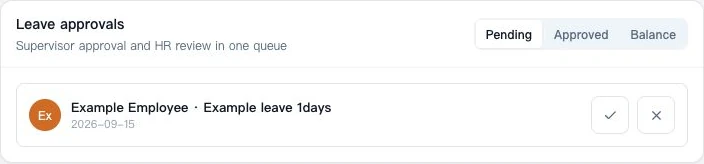
Approve or reject the request
Choose Approve or Reject on the request. Approval notes are optional; rejection requires a reason. Confirm the action and check the resulting status. Use Approved to find an approved request afterward.
Expected result: The page confirms Approved or Rejected and the queue updates.
Know the employee and attendance limits
Personal Settings at /app/hr/me currently has no leave application form. Employees should confirm the submission method with their own HR team. Use only attendance features actually enabled for the company; this guide does not promise in-app clock-in or a unified leave calendar.
Expected result: The employee knows the correct HR contact and does not search for an unavailable submission button.