Advanced data exports
Create permission-scoped CSV or XLSX jobs, monitor them, and download complete files before expiry.
- Who uses it
- Administrators
- Content updated
- 2026-09-09
Sign in to your company workspace first. Add the /app/… paths below to your company system URL.
Before you start
- A signed-in user session in your own deployment domain; API keys cannot manage exports
- integration.manage view to enter the workspace, plus data_export.advanced export and the selected source module export permission
- Enabled deployment runtime switches; pooled deployments additionally need Max or Enterprise entitlement
Steps
Open the signed-in export workspace
Open your own deployment domain at /app/int/docs?section=exports&lang=en or /app/int/docs?section=exports&lang=zh, then sign in and open Developer center → Data exports. Management uses the signed-in user flow; a public API key is not accepted for export management. Basic CSV in business modules remains the simple-list export path.
Expected result: You are using the correct management surface and authentication boundary.
Choose a supported dataset and scope
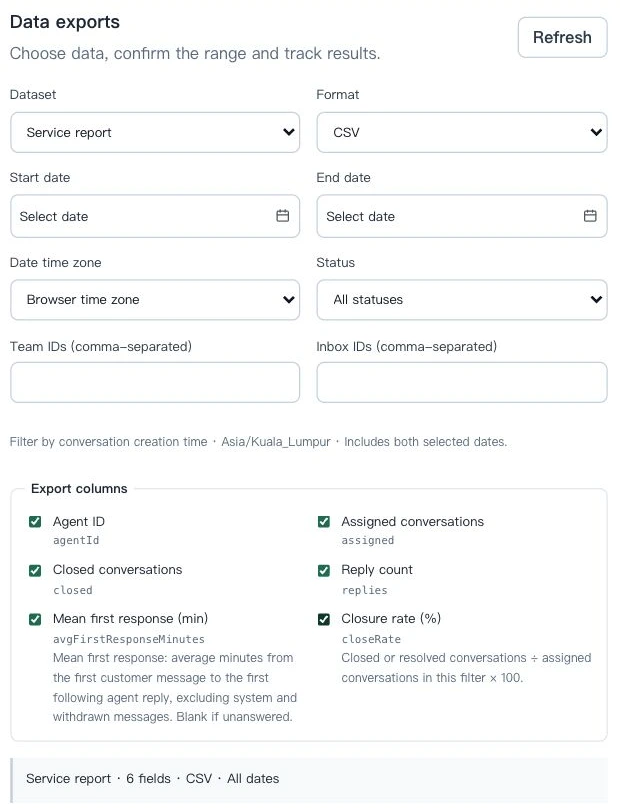
Choose customers, conversations, messages or service_report, then CSV or XLSX. Select only supported filters and fields. Customers support date and team; conversations, messages and service_report also support inbox and status. The date window is creation time, including createdAt for messages rather than sentAt. A browser-local or UTC date zone is converted to precise UTC bounds, with the UI dates inclusive.
Expected result: The submitted scope matches the selected dataset and exact UTC time window.
Confirm and monitor the job
Review the summary before creating the job. The page refreshes queued and running jobs automatically. A tenant may have one running job and five queued jobs. The maximum is 10,000 rows; over-limit jobs fail with a reason and are never truncated into a partial file. Cancel is available while queued or running.
Expected result: You can see whether the job is queued, running, completed, cancelled or failed without treating a partial result as success.
Download and recover safely
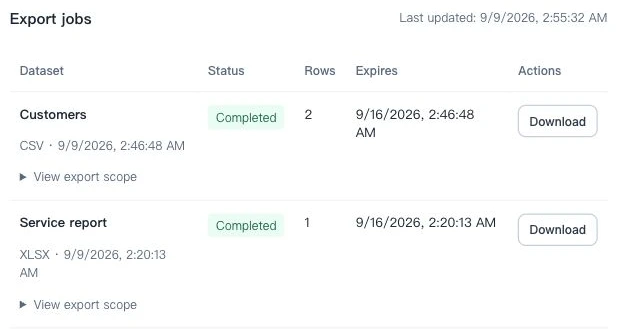
When completed, confirm the row count and download while the file is available. User status and permissions are checked at execution and download. Files expire after seven days and each signed URL lasts five minutes; an expired file must be recreated. Storage or permission failures show a reason. Blank values remain blank, IDs remain strings, and formula-like CSV/XLSX text is escaped.
Expected result: The downloaded file is complete, scoped, and safe to reopen in a spreadsheet.
Read export metrics correctly
The service_report export contains avgFirstResponseMinutes, an arithmetic mean in minutes. The legacy averageFirstResponseSeconds median-in-seconds field belongs to the public API service report at /api/v1/external/reports/service, not this export dataset.
Expected result: Operators use the correct field, unit and source when comparing service metrics.